←Back to blog
Growth & Demand GenerationGuideNovember 24, 20268 min read
Sales Navigator: What It Actually Does and Where It Fits in a B2B SaaS Revenue System
LinkedIn Sales Navigator is LinkedIn’s paid prospecting product. It adds advanced search filters, saved lead and account lists, buying signals, and InMail credits on top of LinkedIn’s member graph. For B2B SaaS teams it is the best source of account and buyer targeting, but it has no native export or email data. It pays off only when it is connected to your CRM and outbound workflow.
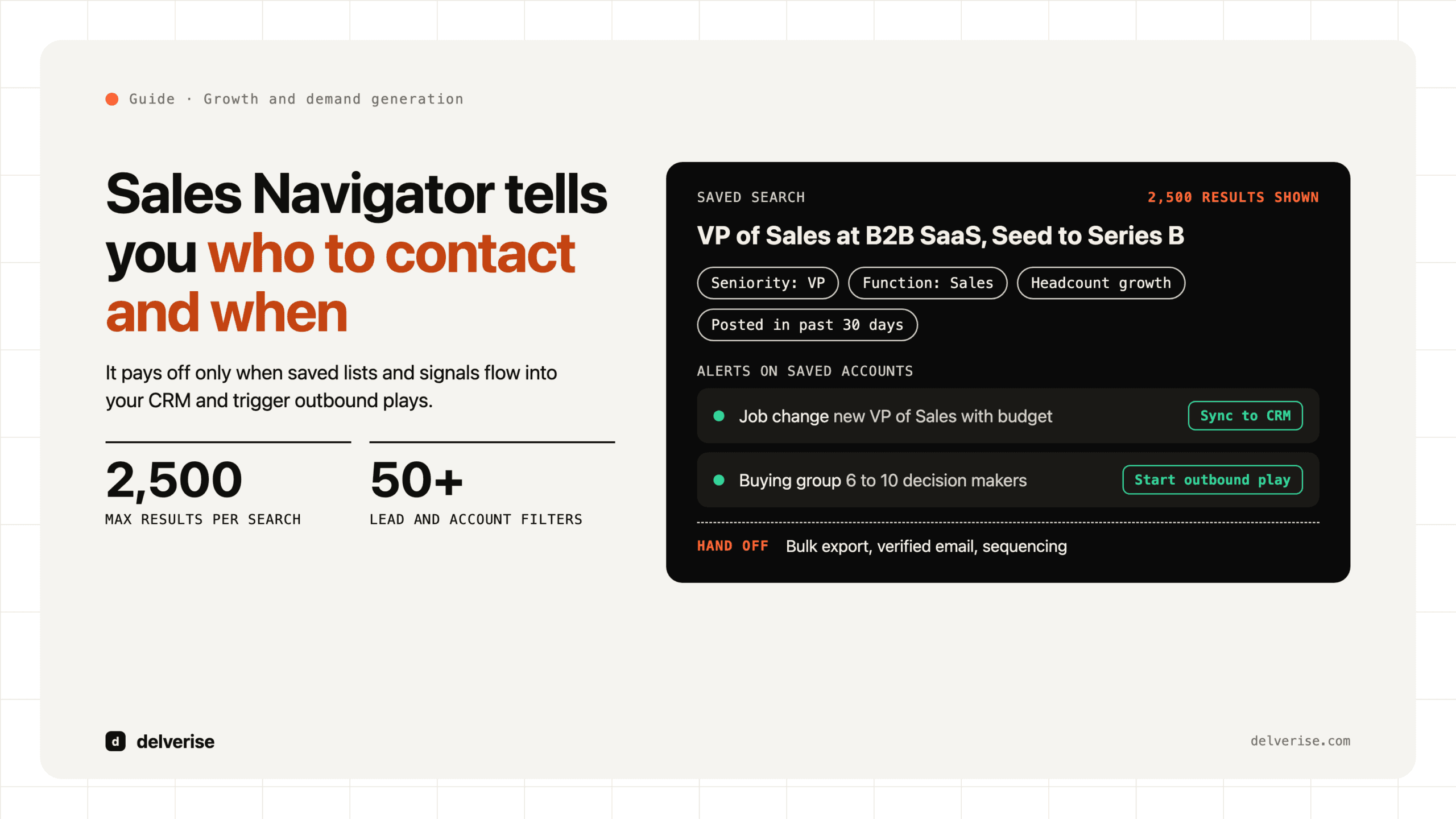
LinkedIn Sales Navigator is LinkedIn’s paid prospecting product. It adds advanced search filters, saved lead and account lists, buying signals, and InMail credits on top of LinkedIn’s member graph. For B2B SaaS teams it is the best source of account and buyer targeting, but it has no native export or email data. It pays off only when it is connected to your CRM and outbound workflow.
Key takeaways
- Sales Navigator is a targeting and signal layer. It tells your team who to contact and when, and it leaves contact data and sequencing to other tools.
- The tier decision comes down to collaboration and CRM sync. Core suits individual reps, Advanced suits teams, and Advanced Plus suits organizations that need CRM sync.
- Searches show at most 2,500 results, and LinkedIn prohibits scraping. Build your workflow within those limits so you don’t put rep accounts at risk.
- Seat ROI depends on usage. A seat that nobody opens daily is the most common waste in a Seed to Series B tech stack.
- The value compounds when saved lists, job-change alerts, and account signals flow into your CRM and trigger outbound plays automatically.
What is Sales Navigator, and what does it actually do?
Sales Navigator is a separate interface built on LinkedIn’s professional graph, sold per seat. A lead in Sales Navigator is a saved person, and an account is a saved company. Reps build lists of both, and the product then surfaces activity on them: job changes, posts, company growth, and hiring trends.

Its core capabilities fall into four groups:
- Search: more than 50 lead and account filters, including seniority, function, headcount growth, years in role, technologies (on some accounts), and “posted on LinkedIn in the past 30 days.”
- Lists and alerts: saved searches that notify reps when new people match, plus alerts on saved leads and accounts.
- Signals: job changes, recent hires, company news, and on higher tiers, buyer intent based on how an account engages with your company’s LinkedIn presence.
- Outreach: InMail credits for messaging people outside your network, and TeamLink, which shows which of your colleagues are connected to a prospect.
What it lacks matters as much. There is no bulk export, no verified email or phone data, and no multi-step sequencing. Those gaps are why Sales Navigator almost always sits next to a data provider and a sequencer.
Why does Sales Navigator matter to a revenue leader?
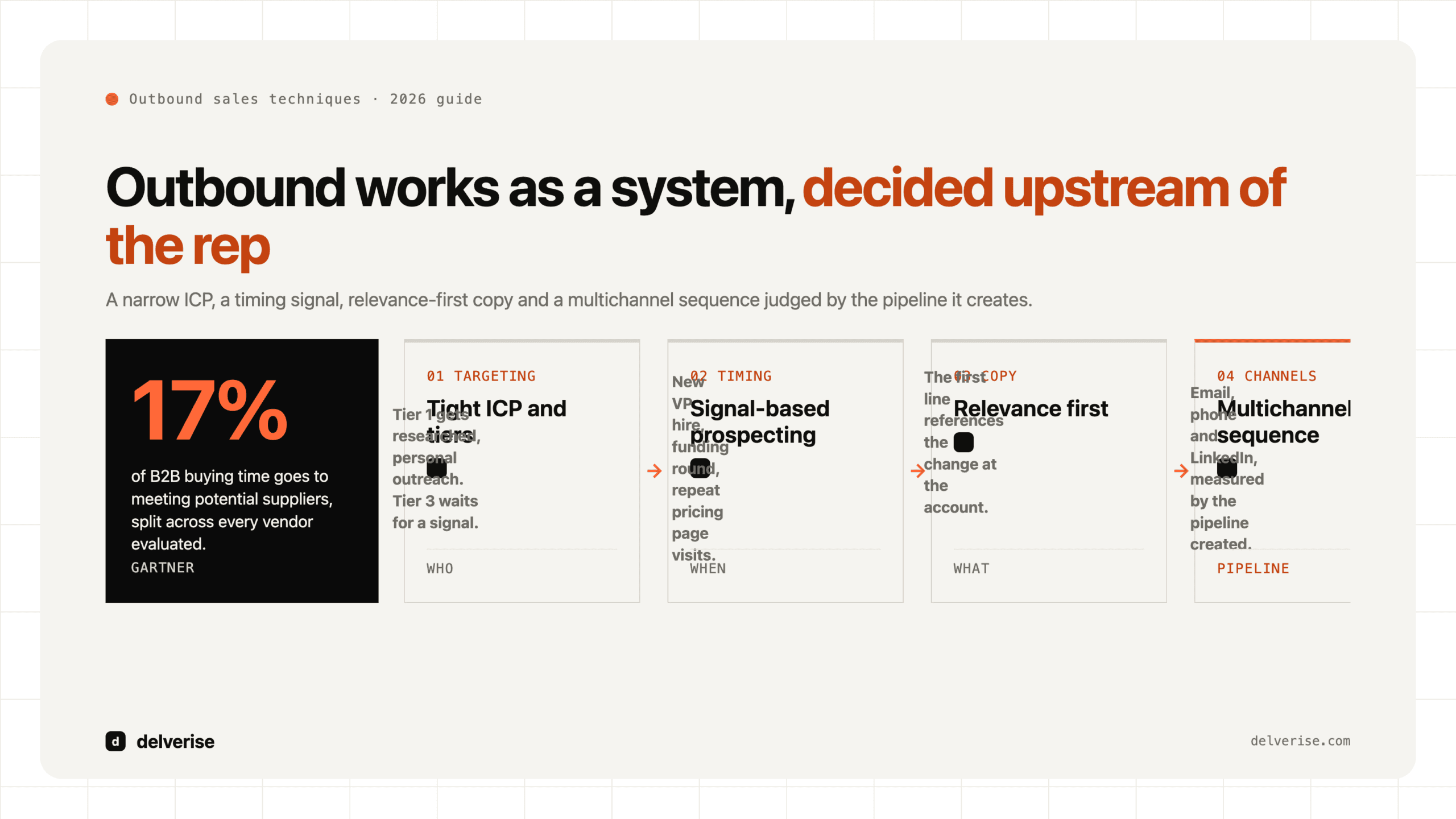
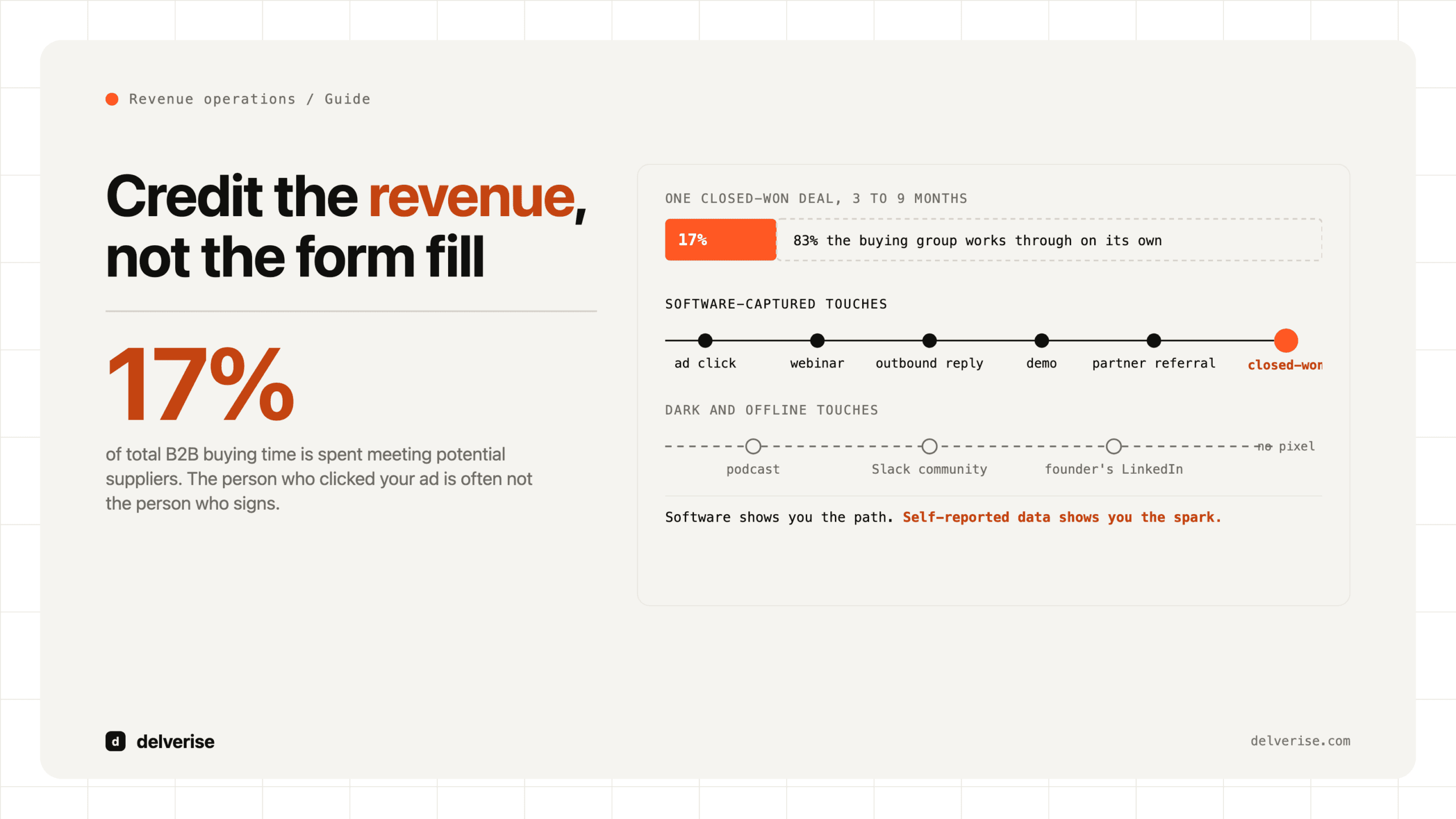
Buying has become harder to reach through one channel. Gartner’s research on the B2B buying journey found that buyers spend only about 17% of their total buying time meeting with potential suppliers, and a typical buying group for a complex solution includes six to ten decision makers. McKinsey’s B2B Pulse research found that buyers now regularly use ten or more channels during a purchase.

Put those findings together and you get the targeting problem Sales Navigator helps solve. Your reps have little time with buyers, several people influence the decision, and those people research you in places your team doesn’t see. Sales Navigator is the most reliable way to map the full buying committee at a target account and notice when something changes, such as a new VP of Sales who arrives with budget and a mandate. For a CRO, it improves account selection and timing. It won’t fix messaging or pipeline math on its own.
Which Sales Navigator tier should your team buy?
LinkedIn renamed its tiers a few years ago: Professional became Core, Team became Advanced, and Enterprise became Advanced Plus. Features and list prices change often, so check LinkedIn’s current plan page before you buy. The structure has been stable, though:

| Capability | Core | Advanced | Advanced Plus |
|---|---|---|---|
| Advanced lead and account search | Yes | Yes | Yes |
| Saved lists, alerts, lead recommendations | Yes | Yes | Yes |
| InMail credits | Yes | Yes | Yes |
| TeamLink (colleague connection paths) | No | Yes | Yes |
| Buyer intent and account engagement signals | Limited | Yes | Yes |
| Smart Links (trackable content sharing) | No | Yes | Yes |
| Centralized admin, seat management, usage reporting | No | Yes | Yes |
| CRM sync (Salesforce, Microsoft Dynamics, HubSpot) | No | No | Yes |
| Pricing model | Self-serve, per seat | Self-serve, per seat | Contract, custom |
Our recommendation for most Seed to Series B teams: a founder selling alone or a single AE can run on Core. Once you have two or more reps working the same territory, Advanced pays for itself through shared lists, TeamLink, and admin controls that let you reassign seats when people leave. Advanced Plus becomes worthwhile when your CRM is the system of record and you want Sales Navigator activity and account data written back to it automatically. Before that point, you can usually get the same outcome more cheaply with a lighter integration.
Where does Sales Navigator break, and what do teams misjudge?
Most failed Sales Navigator rollouts share a few problems.
- The 2,500 result cap. Any single search displays at most 2,500 results. Wide searches like “VP Sales, US, 50 to 500 employees” get cut off without warning. The fix is narrower, stacked searches split by region, headcount band, or industry.
- No compliant bulk export. LinkedIn’s user agreement prohibits scraping. Browser extensions that pull thousands of profiles can get a rep’s account restricted, which is a real business risk when that account holds years of relationships. Have legal and RevOps agree on the policy before anyone installs a scraper.
- Contact data lives elsewhere. You still need emails and direct dials. Teams pair Sales Navigator with a provider like Apollo or SalesIntel. Our SalesIntel breakdown covers how that data layer fits.
- InMail doesn’t replace a channel strategy. Credits are limited, and LinkedIn also caps weekly connection requests. Sales Navigator messaging works best as one touch in a multichannel sequence alongside email and calls.
- Shelfware. Advanced includes usage reporting for a reason. Seats that nobody logs into are common, and at per-seat pricing they add up quickly.
G2 reviews of Sales Navigator show the same pattern. Reviewers consistently praise search depth and data freshness, and they consistently complain about price, export restrictions, and the manual work of moving leads into other systems. Both halves of that feedback point to the same conclusion: the tool performs well when the workflow around it has been built.
How should Sales Navigator fit into your revenue system?
Treat Sales Navigator as the targeting and trigger layer, with clear handoffs to the systems before and after it. A working architecture has four stages:
- Define the target. Turn your ICP into saved account searches: firmographic filters plus signals like headcount growth or recent funding. If your ICP definition is still loose, fix that first. Our guide to the six foundation pieces under every revenue stack covers the prerequisites.
- Map the buying committee. For each target account, save the economic buyer, the champion, and the likely evaluator as leads. This is where Sales Navigator beats every database, because LinkedIn profiles are self-maintained and current.
- Enrich and sync. Move saved leads into your CRM with verified contact data. Advanced Plus handles the sync natively. Otherwise, a CRM enrichment workflow, often built in Clay, takes LinkedIn profile URLs and returns emails, phones, and firmographics without scraping.
- Trigger plays from signals. Job changes, new hires into target roles, and account intent spikes should create tasks or enroll contacts in sequences. Our guide to outbound sales automation covers which parts to automate and which touches to keep human.
The biggest gains usually come from stage four. A former champion who joins a new ICP company is among the warmest outbound opportunities you will see, and Sales Navigator surfaces those moves automatically. Without a routing rule, the alert sits unread in a rep’s inbox.
What does a Sales Navigator rollout look like in practice?
Here is a worked example with illustrative numbers. A Series A SaaS company has three outbound SDRs and one AE, and each seat on Advanced costs roughly $1,500 to $1,800 a year. That comes to about $6,000 to $7,000 annually for four seats.
Suppose the team’s average contract value is $25,000. The seats pay for themselves if Sales Navigator targeting produces one extra closed deal in a year. That bar is low, and it is also the wrong way to judge the purchase. The better question is whether the team uses the tool daily in a repeatable way. A useful 30-day adoption checklist:
- Every rep has three to five saved account searches that match the documented ICP
- Each tier-one account has at least three saved leads across the buying committee
- Job-change alerts on past champions and closed-won contacts are turned on
- Saved leads flow into the CRM with verified email within 24 hours
- Signal-triggered contacts enter a defined sequence, using tested cold email templates
- RevOps reviews seat usage monthly and reassigns inactive seats
If a team can’t check most of those boxes after a month, the problem is almost always workflow design. More seats or a higher tier won’t solve it.
Frequently Asked Questions
Is Sales Navigator worth it for an early-stage B2B SaaS company?
Usually yes, for anyone doing outbound or account-based selling. Start with one or two Core seats for the founder or first sales hire. Move to Advanced once multiple reps share territory and need shared lists, TeamLink, and admin controls.
Can you export leads from Sales Navigator?
Sales Navigator has no native bulk export, and LinkedIn’s terms prohibit scraping. Advanced Plus syncs leads and accounts to supported CRMs. On other tiers, teams pass LinkedIn profile URLs into an enrichment workflow that returns contact data from licensed providers.
Does Sales Navigator include email addresses and phone numbers?
Generally no. It shows LinkedIn profile information and lets you send InMail. For verified emails and direct dials, pair it with a contact data provider such as Apollo, SalesIntel, or a waterfall enrichment setup in Clay.
How is Sales Navigator different from LinkedIn Premium?
LinkedIn Premium is built for individual networking and job searching. Sales Navigator is built for selling. It adds the advanced lead and account filters, saved lists, buying signals, and CRM integrations that Premium lacks.
What is the biggest mistake teams make with Sales Navigator?
Buying seats before designing the workflow. Without defined ICP searches, CRM handoffs, and signal-triggered plays, reps browse profiles by hand and the tool never connects to pipeline. Build the system first, then add seats to match how it gets used.